
Docs > Tasks
Tasks
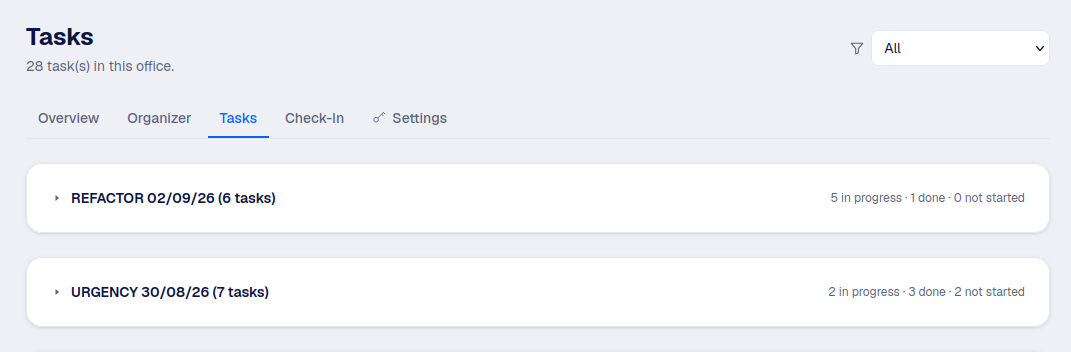
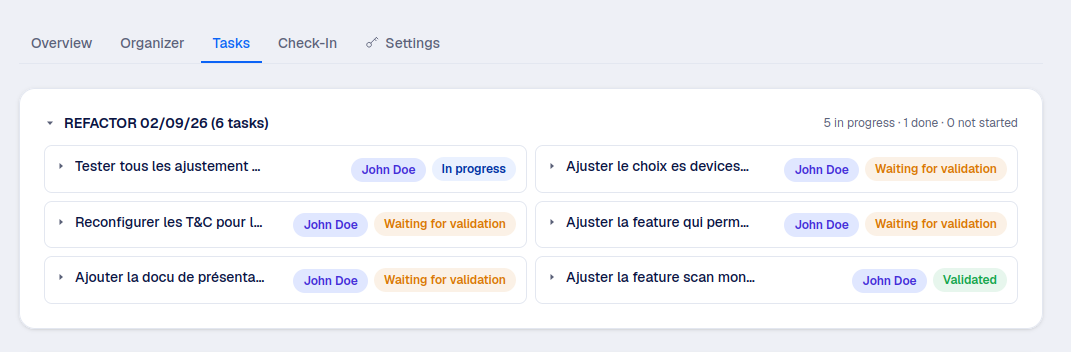
A task is the unit of work in OOffix. It moves through a small, fixed set of statuses, and each status decides which action is available next, shown as a single colored icon button on the task card.
The task lifecycle
- To do: created, assigned or not, nobody has started it yet.
- Accepted: the assignee has taken it on, but hasn't started the timer.
- In progress: the timer is running, or paused (still "In progress", just without an active session).
- Declared: the assignee marked it done. It now waits for a manager's approval.
- Validated: a manager approved it. This is the final state.
- Needs rework: a manager sent it back instead of approving it. It goes back to In progress once resumed.
Only a manager (or Authority) can move a Declared task to Validated or Needs rework, from the office's Check-In tab. See Check-In & Validations.
Personal tasks vs office tasks
A task can live in an office (visible to the whole team, subject to manager approval) or in your own BrainDumper, under My Space. A personal task has no manager step: checking it off validates it immediately, since only you can see it.
Action icons
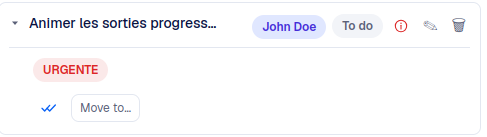
Each task card shows only the actions that make sense for its current status and for who's looking at it. No background fill, just a colored icon:
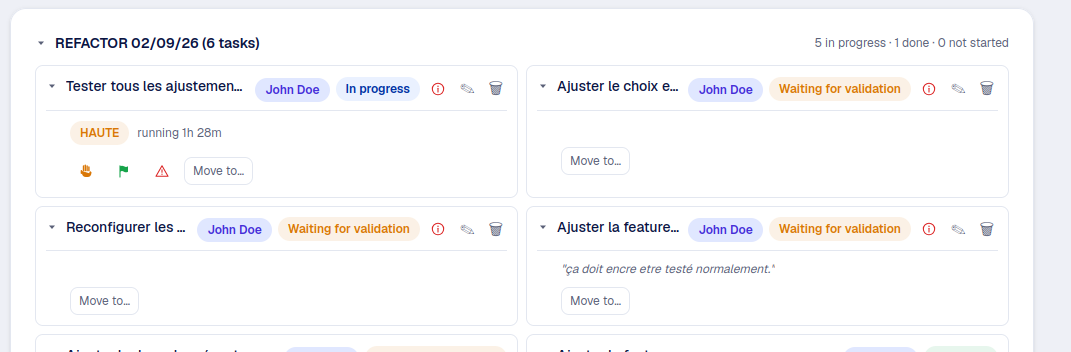
Clicking Done asks you to confirm, then offers to add a short comment for whoever approves it (what you actually did, or anything worth flagging). The comment is optional.
Priorities
A task can be Low, Normal, High, or Urgent. Normal is the default and doesn't show a badge, to keep the task list readable; the other three show a colored badge on the card.
Blockers
If a task can't move forward, the assignee or a manager can report a blocker: a short, required reason for why it's stuck. This is available on any task that's In progress.
- Reporting a blocker is visible to everyone with access to the task, with who reported it and when.
- Resolve (manager only): the blocker was real, and is now fixed. Keeps a record of it.
- Retract (the person who reported it, or a manager): the blocker never should have existed. Removes it entirely.
A task with an unresolved blocker is flagged at risk or blocked, and shows up on the Dashboard's "Needs your attention" list.
Moving and reassigning
An unassigned task can be picked up with "Assign to me", or a manager can assign it to anyone in the office with "Assign to". A manager can also move a task to a different subject within the same office's BrainDumper with "Move to", if it was filed under the wrong one.