
Docs > Getting started
Getting started
OOffix helps a team run its day to day work without a meeting for every update. This page walks through the first things to set up: your organisation, your first office, and your team.
What is OOffix
OOffix is built around a simple idea: a team declares what it did each day, and a manager confirms it, without a status meeting. Everything else (tasks, chat, calendar, performance stats) exists to support that loop.
Three concepts come up everywhere in the product:
- Organisation: your company or workspace. Everyone you invite belongs to one organisation.
- Office: a team or department inside your organisation (Engineering, Sales, a client account, anything that groups people and tasks together).
- Task: the unit of work. It moves through a small set of statuses from creation to completion. See the Tasks page for the full lifecycle.
(as many as your plan allows)
Your organisation
When you sign up, OOffix creates an organisation for you and makes you its owner. The owner is the one person who can transfer ownership or delete the organisation entirely. Day to day management (members, offices, roles) doesn't require being the owner: see Roles & permissions for the full breakdown.
Good to know
An account can only own one organisation on the Free plan. If you need a second one, upgrade the first, or create the new one from a different account.
Your first office
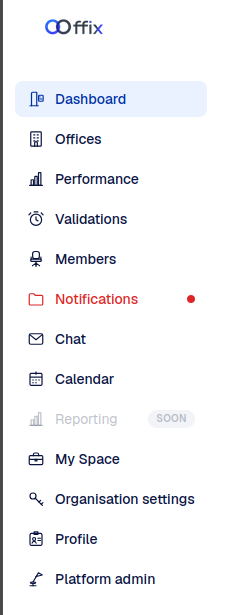
Create an office from the Offices page. An office needs just a name to start. Once created, you can:
- Set its daily check-in time and timezone, in the office's Settings tab.
- Add members who already belong to your organisation.
- Give it a color and a photo, so it's easy to recognize on the Offices list.
An organisation can hold up to 10 offices, depending on your plan (see Plans & billing).
Inviting your team
Add people at the organisation level first, from the Members page: enter their name and email. If they already have an OOffix account, they're added right away. Otherwise they get an email invitation to set their own password.
Being a member of the organisation doesn't put someone in any office yet. Add them to a specific office from that office's page; they'll get an invitation to accept before they actually join it and start seeing its tasks and chat.
Where to go next
- Roles & permissions: who can do what.
- Offices: settings, members, alerts.
- Tasks: the full lifecycle and what each button does.
- Check-In & Validations: how a day gets declared and approved.