Docs > Offices
Offices
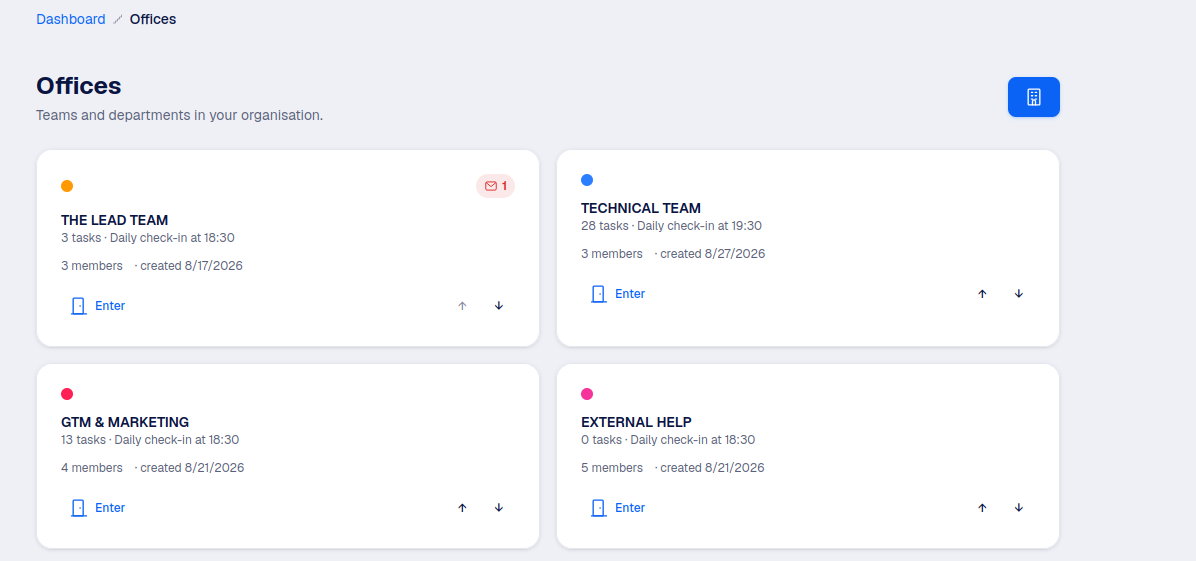
An office is where the actual work happens: it groups a team, their tasks, their chat, and their own check-in rhythm. Most of your day in OOffix happens inside one office or another.
What an office is
Think of an office as a team or a department: Engineering, Sales, a specific client account. Each office has its own:
- Member list, with each member's internal role (a free text label like "Developer").
- Tasks, organized by subject in its BrainDumper (see BrainDumper).
- Chat, separate from any other office's chat.
- Check-in time and reminder settings.
Members
Only people already in your organisation can be added to an office; if someone is completely new, add them at the organisation level first (Members page). Adding someone to an office sends them an invitation they need to accept before they show up in that office's member list, tasks, and chat.
Adding someone to an office
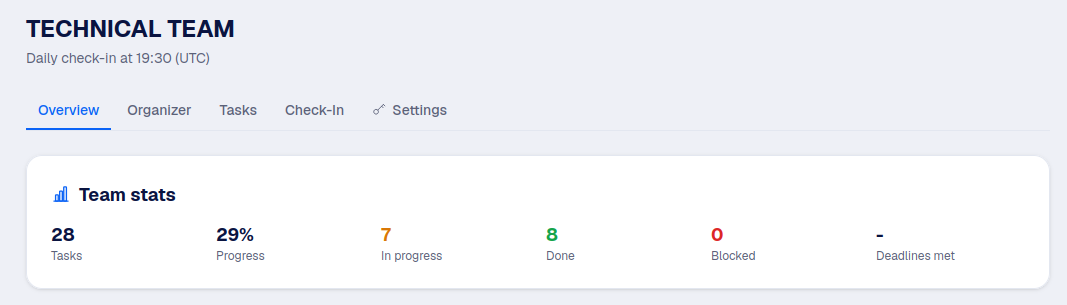
- Open the office, and use the add member button on its overview page.
- Pick them from the list of organisation members not already in this office.
- Optionally give them an internal role label, shown next to their name in this office.
- They receive a notification and an invitation; nothing changes for them until they accept it.
Good to know
Manager or Collaborator isn't chosen here anymore: it's set once for the whole organisation. See Roles & permissions.
Office settings
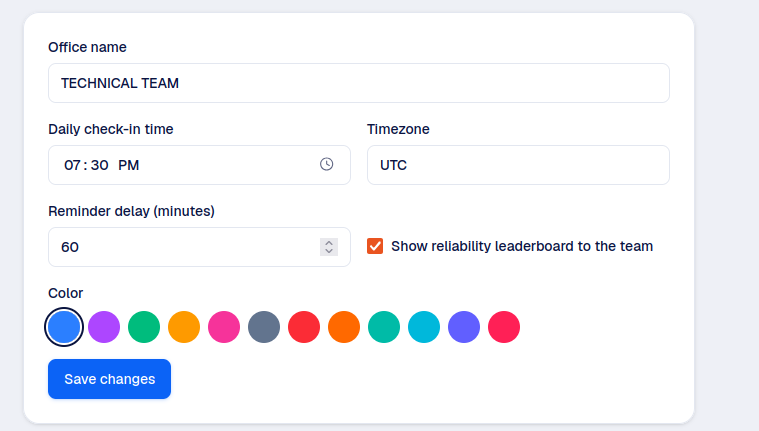
Available to an Authority, or a Manager who belongs to the office, from its Settings tab:
- Daily check-in time and timezone: when the day is considered "closed" for this office.
- Reminder delay: how long after check-in time to nudge anyone who hasn't declared yet.
- Reliability leaderboard: whether the team can see it, or only managers.
- Color and photo: how the office is shown on the Offices list.
- Deleting the office: permanently removes its tasks, projects, and chat history. Reserved for an Authority.
Alerts
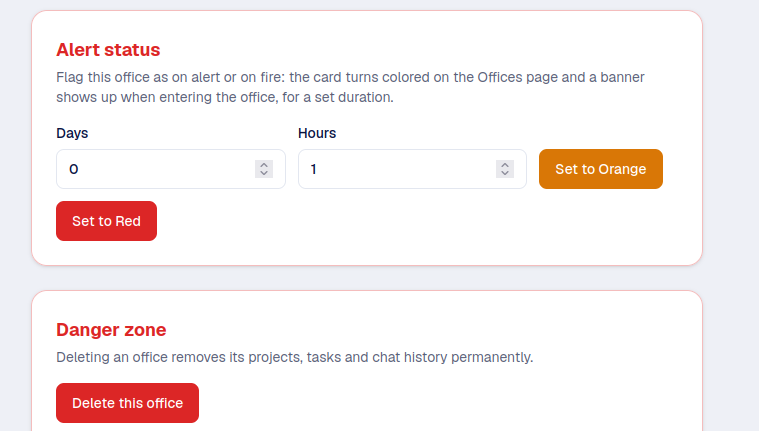
An Authority can flag an office as on alert (orange) or on fire (red), for a chosen number of days and hours. While active, the office's card is colored on the Offices list, and a banner shows up for anyone entering it. Use this to surface a team that needs attention without writing a message to everyone.